
Watching Go3 on your Smart TV is a simple and easy process. In this article, you will find out how to connect your Smart TV to your Go3 account and enjoy your favorite content on the big screen.
✅ What will be needed?
- A Smart TV that supports the Go3 app (LG, Samsung, Android TV, Hisense, Philips with Titan OS);
- An active Go3 account;
- Internet connection.
📲 1. Download the Go3 App
Open your TV’s app store and search for “Go3”. Download and launch the app.
🌍 2. Select Your Region
When you open the app for the first time, choose “Latvia” as your region.
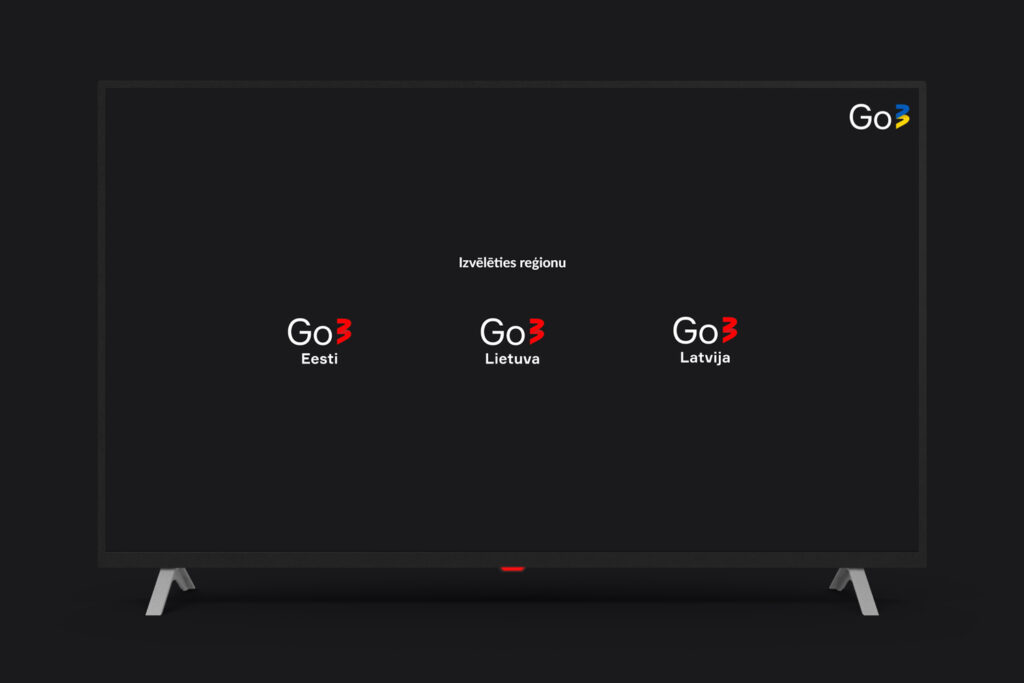
🔐 3. Sign In to Your Go3 Account
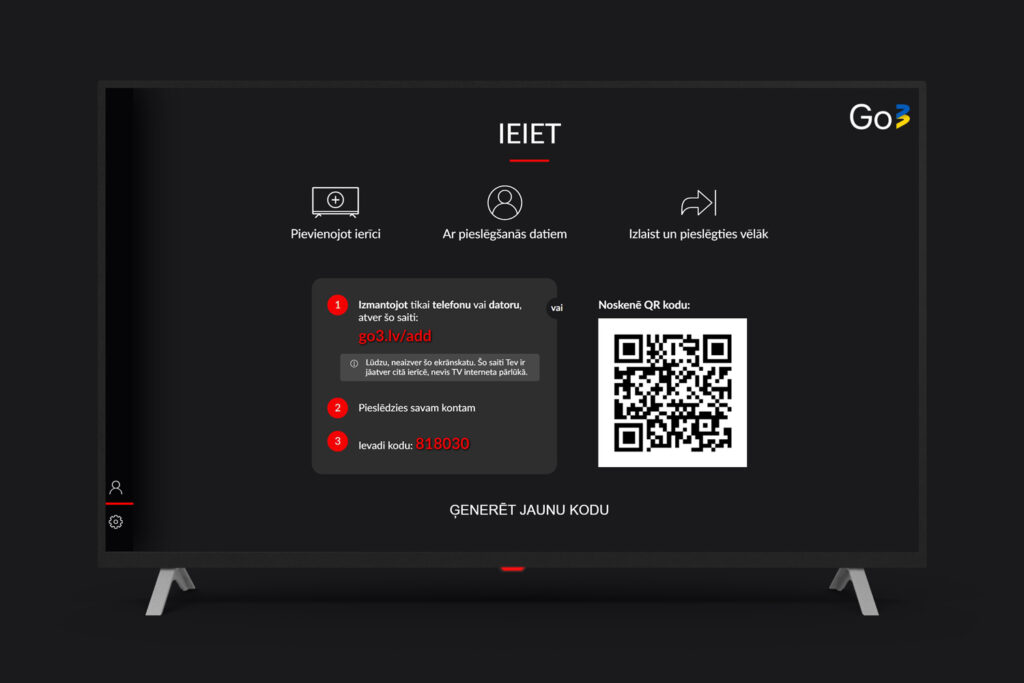
You have three easy options:
📱 Using the Mobile App
- Open and log in to the Go3 app on your phone
- Go to “My Account” → “Add TV Device”
- Scan the QR code shown on your TV screen
- You’re now logged in on your TV
💻 Using a Web Browser
- Visit the Go3 connect TV page
- Enter the 6-digit code displayed on your TV
- You’re now logged in on your TV
✉️ Using Email or Phone Number
- Enter your Go3 account email or phone number
- Enter your password and click “Sign In”
- You’re now logged in on your TV
🛠️ Having Trouble?
- Make sure your TV is connected to the internet.
- Check that the Go3 app is up to date.
- If you tried to register using 6-digit code via web Browser and see an error code (like OTC002), try generating a new code.